How to Fax from Email (Gmail, Outlook, and More)
Email-to-fax lets you send a document from Gmail, Outlook, Apple Mail, or another email client without a fax machine. An online fax service converts the message and attachments into a fax, sends it, and reports the result. Address formats, eligible plans, authorized senders, attachment rules, and cover-page behavior vary, so use this checklist with the current instructions in your account.
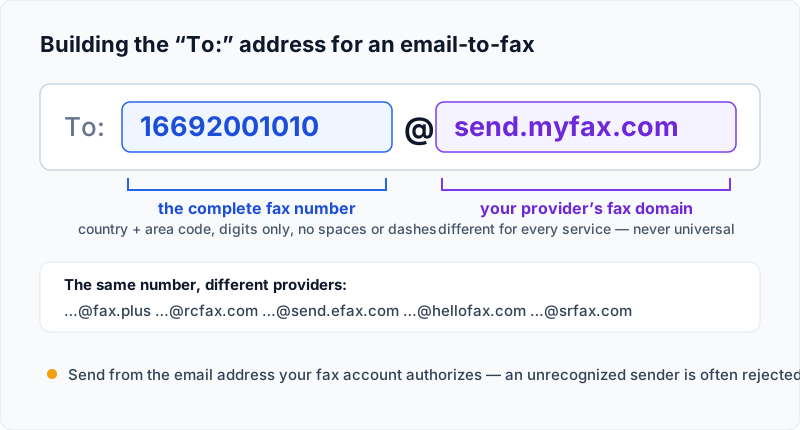
Quick answer: with every service in our lineup, you send an ordinary email to the destination fax number at your provider’s fax domain — for example
[email protected]— from an email address your account recognizes, with the document attached. The concept is universal; the @-domain and the fine print are not. The provider table below lists all eight verified formats, or see our online fax service reviews if you’re still choosing one.
What You Need Before You Start
- An online fax account with email-to-fax access. The feature may be limited to certain plans or disabled until you turn it on.
- An authorized sender address. Many services accept fax emails only from an address registered on the account.
- The complete destination fax number. Include the country and area code in the exact format your provider requires.
- A supported document. PDF is a dependable choice because it usually preserves page layout, but each service publishes its own supported formats and size limits.
- The recipient’s current instructions. Confirm the correct fax number, required cover sheet, deadline, and whether fax is an accepted delivery method.
If you still need a service, start with our online fax comparison. For web-portal and phone methods, see the broader guide to sending a fax online.
How to Send a Fax from Email
-
Confirm that email-to-fax is included and enabled. Check your plan and account settings; a marketing page that advertises the feature does not mean every tier includes it.
-
Prepare the document. Open the final file and check that every page is readable, upright, and in the intended order. Remove password protection unless your provider specifically supports it. If several files must arrive in a particular sequence, attach them in that sequence.
-
Compose from the authorized email address. An alias, shared mailbox, or alternate account may be rejected even when the destination is correct.
-
Build the destination address. Online fax services commonly combine the fax number with a provider-owned email domain. Remove punctuation or add a leading country code only as the provider directs; there is no universal format.
-
Add a cover note only if needed. Some providers turn the email body into a cover page, while others treat the subject as an internal note or fax subject. Keep sensitive details out of the subject line unless the workflow specifically requires them.
-
Attach the document and send. Recheck the fax number, file list, and recipient before selecting Send. A typo can deliver a document to the wrong destination.
-
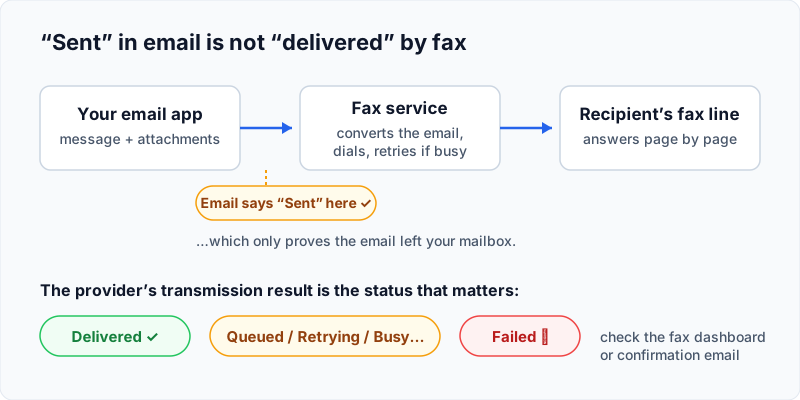
Wait for the fax result. Your Sent folder proves only that the email left your mailbox. Confirm success in the provider notification or dashboard.
Current Email-to-Fax Formats by Provider
Every service we review supports email-to-fax. This table covers all eight — the destination format, which sender addresses are accepted, what plan or setting the feature needs, and whether the same account receives faxes by email. Formats and rules change, so confirm the current instructions inside your account before sending anything important.
Compare each provider’s plan requirements and restrictions below.
| Provider | Address format | Send from | Plan or setting required | Receive by email? |
|---|---|---|---|---|
| Dropbox Fax | [email protected] — US: 1 + number ([email protected]); elsewhere: 00 + country code + number | The account’s own email — aliases not supported | Paid subscription | Paid plans only; inbound numbers in the US, UK, and Canada |
| eFax | [email protected] | Addresses linked to the account (up to five Gmail accounts) | Included with eFax accounts | Yes — inbox attachment plus portal |
| Fax.Plus | Full number incl. country code + @fax.plus ([email protected]) | The account email address | Enable Email to Fax in Profile settings | Yes — PDF attachment or portal, per settings |
| iFax | [email protected] ([email protected]) | The registered account email | Pro plan (or trial); enable under Settings → Preferences | Receiving starts on the Plus plan |
| MyFax | [email protected] — full number, no spaces | Up to 5 email addresses on the account | Included on all plans | Yes — attachment plus a MyFax Central copy |
| Nextiva vFAX | 1 + 10-digit number + @nextivafax.com ([email protected]) | The primary account email only | Standard vFAX plans only — the HIPAA plan bars email faxing (see note); no international sending | Standard plans: yes — email plus the vFax portal |
| RingCentral Fax | [email protected] (10-digit number) | A trusted email added under Fax Settings → Faxes Sent Via Email | RingEX Advanced or Ultra tiers | Yes — email, app, or portal |
| SRFax | [email protected] ([email protected]) | An authorized-user address set in the Sending Faxes settings | Included; accounts serve the US and Canada | Yes — attachment about 30 seconds after receipt, plus portal |
Worth knowing, from the same official sources:
- Fax.Plus Enterprise accounts with a signed BAA get a TLS-enforcing address —
[number]@tls.fax.plus— for HIPAA email-to-fax workflows. - eFax has used other sending domains in older material — which is why you confirm the format in your own account.
- SRFax prefers plain-text email and can broadcast one fax to up to 50 numbers; MyFax broadcasts to up to 9 numbers per email fax (or up to 50 through its MyFax Central portal), with delivery confirmations as an optional setting.
- Nextiva vFAX accepts up to 10 attachments (about 2 MB each recommended) and sends them in the order attached. Its HIPAA plan is the exception to email faxing entirely: per Nextiva’s vFAX guide, HIPAA vFAX users cannot send faxes via email or receive faxes as email attachments — they get email notifications and must log in to the vFAX portal to view the fax.
Official provider instructions, if you want to recheck a format yourself:
- Dropbox Fax — send a fax through email
- eFax — send a fax by email
- Fax.Plus — email to fax
- iFax — send a fax via email
- MyFax — send a fax via email
- Nextiva — getting started with vFAX
- RingCentral — email to fax
- SRFax — email to fax guide
Cover Pages and Attachment Order
Email fields do not behave identically across services. Fax.Plus can turn body text into a cover sheet; Nextiva documents the subject and body as fields on its default cover page; SRFax adds a cover page only when both the subject and the body are filled; and Dropbox Fax prints your subject line in the cover page’s To field. Check whether signatures, footers, quoted replies, or logos will become fax content. For multiple attachments, verify the provider’s page order or merge the files into one checked PDF.
How to Confirm Delivery
Treat the provider’s transmission result—not the email client’s sent indicator—as the important status. Queued, retrying, busy, or failed is not success. Save the confirmation when required, and for deadlines confirm the destination matched the fax to the right person or account. Do not resend while an attempt is still processing.
Common Problems and Fixes
- The service rejected the sender. Send from an authorized account address and check whether email-to-fax is enabled.
- The destination was invalid. Rebuild the address from the provider’s current country-code instructions without guessing about spaces, dashes, or a leading
+or1. - The attachment failed. Convert the document to PDF, remove password protection, reduce its size, or split it only if the recipient accepts separate transmissions.
- Pages arrived in the wrong order. Rename and attach files in sequence, or merge them into one checked PDF before sending.
- No confirmation arrived. Look in spam, then check the fax dashboard. Do not assume silence means delivery.
- The fax is retrying or busy. Let the provider finish its retry cycle before sending another copy. Verify the number with the recipient if failures continue.
Sensitive or Regulated Documents
Email-to-fax is not automatically appropriate for protected health information, financial records, legal files, or other sensitive material. Copies may remain in your Sent folder, on a device, in a shared mailbox, or in provider storage. Security and compliance depend on the exact tier, settings, email path, access controls, agreements such as a BAA, and your own procedures.
Follow your organization’s policy and the recipient’s instructions. If a provider offers a special secure-email address, notification-only delivery, or an enterprise configuration, use it only after confirming that your account is configured for that workflow.
Email-to-Fax FAQ
Can I fax from Gmail or Outlook?
Yes, if your online fax service supports email-to-fax and recognizes the address you send from. Gmail and Outlook are the email clients; the fax provider performs the conversion and transmission.
Can I email a fax number without an online fax service?
Not by addressing an ordinary email directly to a telephone number. You need a fax service or another gateway that supplies the special destination domain and connects the email to the fax network.
Does an email Sent status mean the fax was delivered?
No. It means your email client handed off the message. Check the fax provider’s delivery notification or dashboard for the transmission result.
Can the recipient reply to the fax by email?
Not automatically. Receiving normally requires an inbound fax number and a receiving-capable service or plan. The sender should use the return fax number or response method you provide.